
Descriptive Table of Contents - ColorNeg's Capabilities
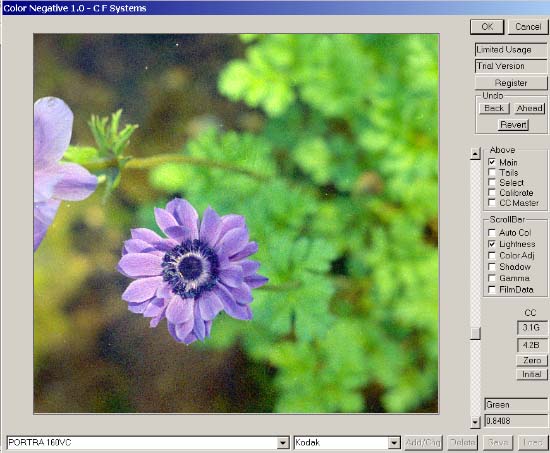
This Descriptive Table of Contents is is part of the ColorNeg 1.01 Manual (PDF 1.6 MB) where most of the bold items are click-enabled within the manual so that it serves as a guided tour of ColorNeg features and capabilities.
Besides inverting normal color negatives quickly, easily, and correctly, ColorNeg provides tools to deal with color negatives of unknown type, color negatives with problems which result from poor processing or other sources, tools for perfectionists who want the best possible results, and tools to help speed the processing and matching the results from negatives that are similar.
To correctly invert a color negative, four considerations are necessary. First, a good and proper scan of the negative is absolutely necessary for good results. This is the most likely source of trouble if ColorNeg consistently does not work well on good test negatives. While ColorNeg cannot help directly with scanning, see Scanning the Negative and the scanner page on our web site:
http://www.c-f-systems.com/Scanners.html to learn how or if you are having problems.
Second, the film must be properly characterized. ColorNeg provides several way of doing that. This often is as easy as selecting the type of film from a list (see Film Selection System), which works well for well-processed negatives of a known film type. ColorNeg has data for nearly 80 recent films from Agfa, Fuji, Kodak, and Konica built into it. Negatives of unknown type often can be quickly and satisfactorily characterized by trying the several built-in generic film types as explained in Legacy Films or by using the Film Type ScrollBar control, as explained in Film Type Scrolling. Negatives of a known type that have not been processed properly can sometimes be brought to proper characterization as explained under the Gamma ScrollBar control. For the ultimate in characterization, see the Calibration Feature. Using calibration the film may be directly characterized with the aid of a grayscale with known gray values (see Known Calibration), a grayscale for which the gray values are not known (see Approximate Calibration) or even with a grayscale composed of gray elements within a normal scene (see Natural Grayscale Calibration).
Third, the image lightness must be properly set. As described in Lightness, this is done automatically by ColorNeg but because the density range of a color negative is so much greater than of the target digital image, the automatic setting can usually be improved. The setting for automatic lightness can be adjusted - see Tails Control Panel.
Fourth, although ColorNeg makes an initial guess at proper color balance, if a color cast remains in the image, the color balance must be adjusted. Frequently this is as simple as clicking a gray patch within the preview image - see Color Balance by Preview Image Click. For images in which there is no convenient gray patch, the Auto Color ScrollBar control systematically takes you through a range of settings that should produce good color balance for your negative. Finally, Color Adjustment explains how to use the ScrollBar control to directly adjust the color balance, monitoring the result with the CC filter pack readout.
ColorNeg also has a comprehensive CC (color conversion) filter system including both readouts in terms of CC filter packs and the ability to save color correction and shadow settings for use on series of similar negatives. See CC Master Control Panel for complete details including A Brief CC (Color Correction) Filter Tutorial for those who are unfamiliar with this, an extremely useful concept that has largely gone missing from digital imaging.
The Problems and Comments section deals with what to do with negatives that do not respond to normal treatment with sections on Color Balance Extreme Problems, Different Lighting, Color Balance Differs in the Shadows and Highlights, Setting the Color Balance (in Photoshop proper), Color Management and Color Negatives, and calculating Gamma from Manufacturer's Data.
By default ColorNeg applies an S-curve to highlights and shadows. Normally this does an excellent job of preventing blocked shadows and blown highlights. Like all tricks, however, it can sometimes cause problems. If you are having a problem with highlight or shadow blocking or other problems in those areas, the section on the Tails Control Panel explains how the highlights and shadow curves are controlled.
ColorNeg allows different treatment of the inversion inside and outside a feathered selection. See Selection Control Panel for details and Feathered Selections and How to Make Selections on a Negative for hints on how to effectively use this feature. Also placed in the otherwise empty Selection Control Panel are the option for including the image edges in the histograms that control ColorNeg and a place where the effective system gamma, normally 2.2 for PCs, can be changed if necessary. These options are rarely used.
Go to C F Systems Home Page
Privacy Policy and E-Mail